Video
Create a video
 |
Camera toolbar |
| Menu View > Camera > Create a video |
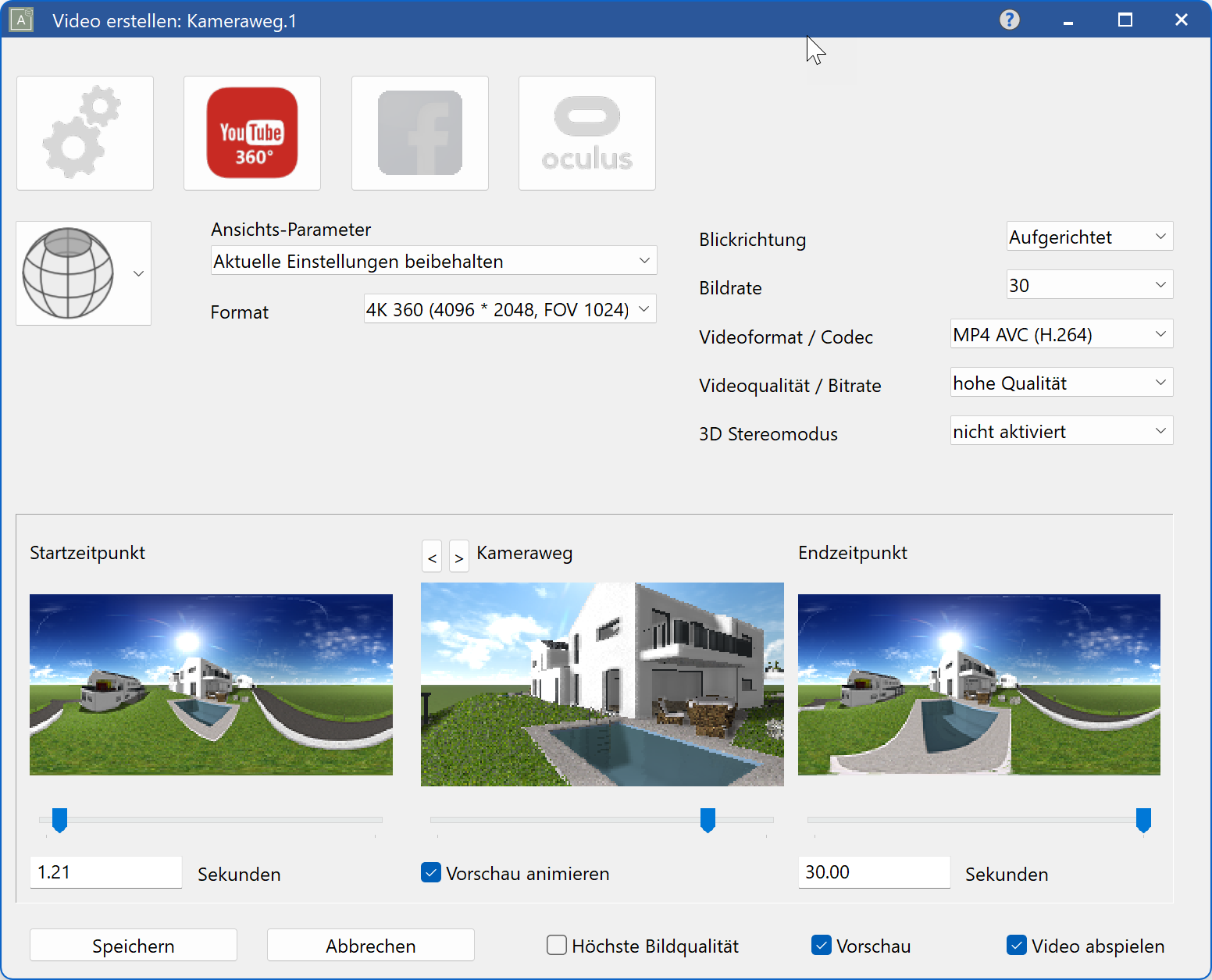
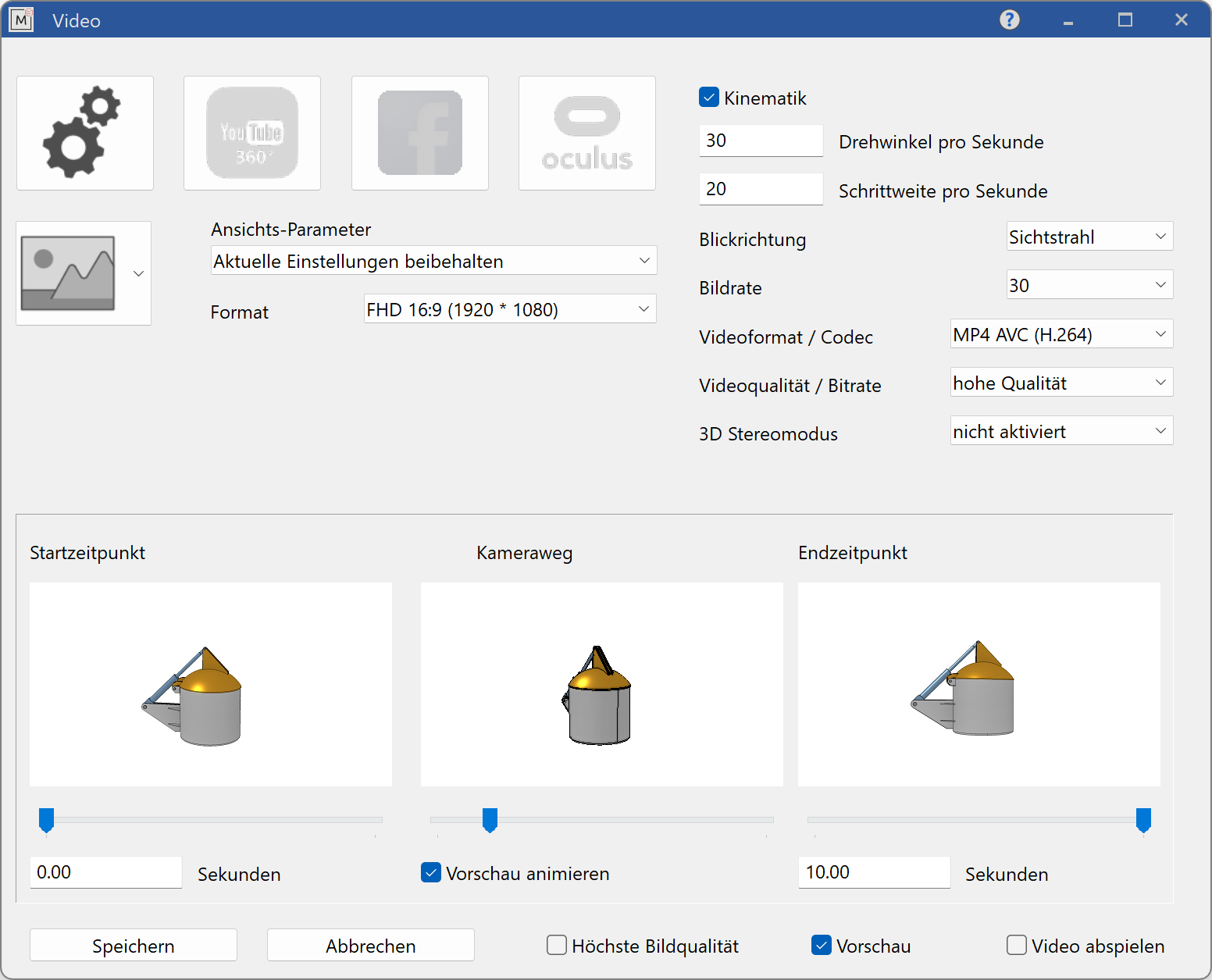
The camera path can be exported as a video with numerous graphical effects. If multiple camera paths exist, the desired path can be selected after starting the function.
The preview window in the middle shows the selected path. The left window shows the starting frame and the right window displays the last frame.
presets
 Free configuration of the presets
 Presets for a YouTube 360° video
 Presets for a Facebook 360° video
 Presets for an Oculus Rift 360° video
Video mode
 2D video
 Panorama video
 360° video
View parameter
For the image generations you can use either the current settings or the settings from the walking mode.
Format
Here you can set the image resolution in pixels. The available options depend on the type of the video. If you choose custom type, you can freely choose the resolution.
Viewing direction
You can choose between three viewing directions.
- Current direction
- Up
- North
Samples per second
The bitrate defines he frames per second. Entering a value here also sets the period value (period = 1000 / frame rate).
Video format / Codec
You can use either one of the three codecs: AVC (H.264), HEVC (H.265) or AV1 (AOMedia) for MP4 videos, or choose an external codec.
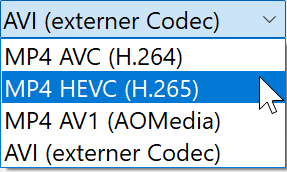
AVC (H.264)
This codec is usually already integrated in to Windows and offers the most universal compatibility. It is recommended beginners to video editing and works well for Full HD videos (1920 × 1080). It can also be used for videos up to 4K (3840 × 2160), although this results in fairly large file sizes.
HEVC (H.265)
This codec is not integrated into Windows by default, but it can be purchased inexpensively from Microsoft Store. It is recommended for videos from 4K (3840 x 2160) up to 8K (7680 x 4320). It can also be used for Full HD videos, producing smaller file sizes than AVC without a loss of quality.
AV1 (AOMedia)
This codec is the also a recommendable option for 4K (3840 x 2160) to 8K (7680 x 4320). It is free to use and available from the Microsoft Store. However, it currently has some limitations: playback compatibility is not as wide as with AVC or HEVC, and video creation requires newer graphics cards (from NVIDIA RTX40 or AMD RX70 on).
AVI (external codec)
This option allows the use of external codecs (e.g. x265vfw) and is recommended only for advanced users. When selected, the system will prompt you to choose from already installed codecs. If the selected codec is compatible, the video will be created; if not, an error message will appear stating so. The main advantage of external codecs is that they often provide a wider range of processing options.
Video quality / Bitrate
Video quality levels are: low - medium - high - highest quality
3D Stereo mode
The following options are available for generating stereo videos.
- not activated
- 2 files (left and right)
- side-by-side (left and right)
- side-by-side (top and bottom)
Kinematics
In ELITECAD Mechanics, kinematics and video export can be combined.
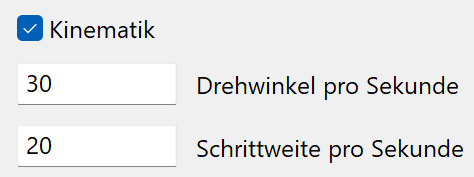
This option is only visible if a kinematics system is defined and can be activated optionally. Depending on the type of simulation, the increment distance or the angle is synchronized with the time control of the video.
Start time
The start time is a value in seconds, and can be entered manually or with the help of a slider. The position in the camera path is displayed in the preview window.
End time
The end time is a value in seconds, and can be entered manually or with the help of a slider. The position in the camera path is displayed in the preview window.
Camera path
The window in the middle shows a preview from the start time to the end time.
Select camera path

If multiple camera paths exist, these buttons can be used to switch between the paths.
Animate preview
If this option is set, the window in the middle will show an animated preview of the video.
Highest image quality
The settings for Level of Detail (LOD) are described in Settings > input devices, and reduce the graphical effects. For image generation, the LOD can be deactivated. This leads to a better image quality, but also takes more time.
Preview
The rendering of images can be observed in the window.
Play video
At the end of the video generation, the video can be played if desired.