3D construction

Table of contents
Launch program
General info
Rotate, zoom and move the image
Define a surface
Define an extrude
Define a box
Define a rotation object
Boolean operation
Example object
Define views
Define dimensions
Printing / plotting
Training examples
Example - Connector 3D
Example - Pedestal
Example - Chute
Example - flange
Example - bend
Example - bracket
Example - 2-view object
Example - bolt
Example - cup
Launch program
Workshop
- Launch the program.
ELITECAD ME17 icon is located on the Desktop.

Double-click on the icon. - ELITECAD launches and initializes the different components.

Give the program time to fully start and only then start working.
General information
Important short cuts
Ctrl+B Change background colour
Ctrl+D Solid on/off
Ctrl+E Elements on/off
Ctrl+K Edges on/off
Ctrl+T Transparency on/off
Ctrl + pos1 Starting position and format
Ctrl+Space Starting position current zoom
For further functions see manual or online help!
The following snap functions are available in 3D (3D model).
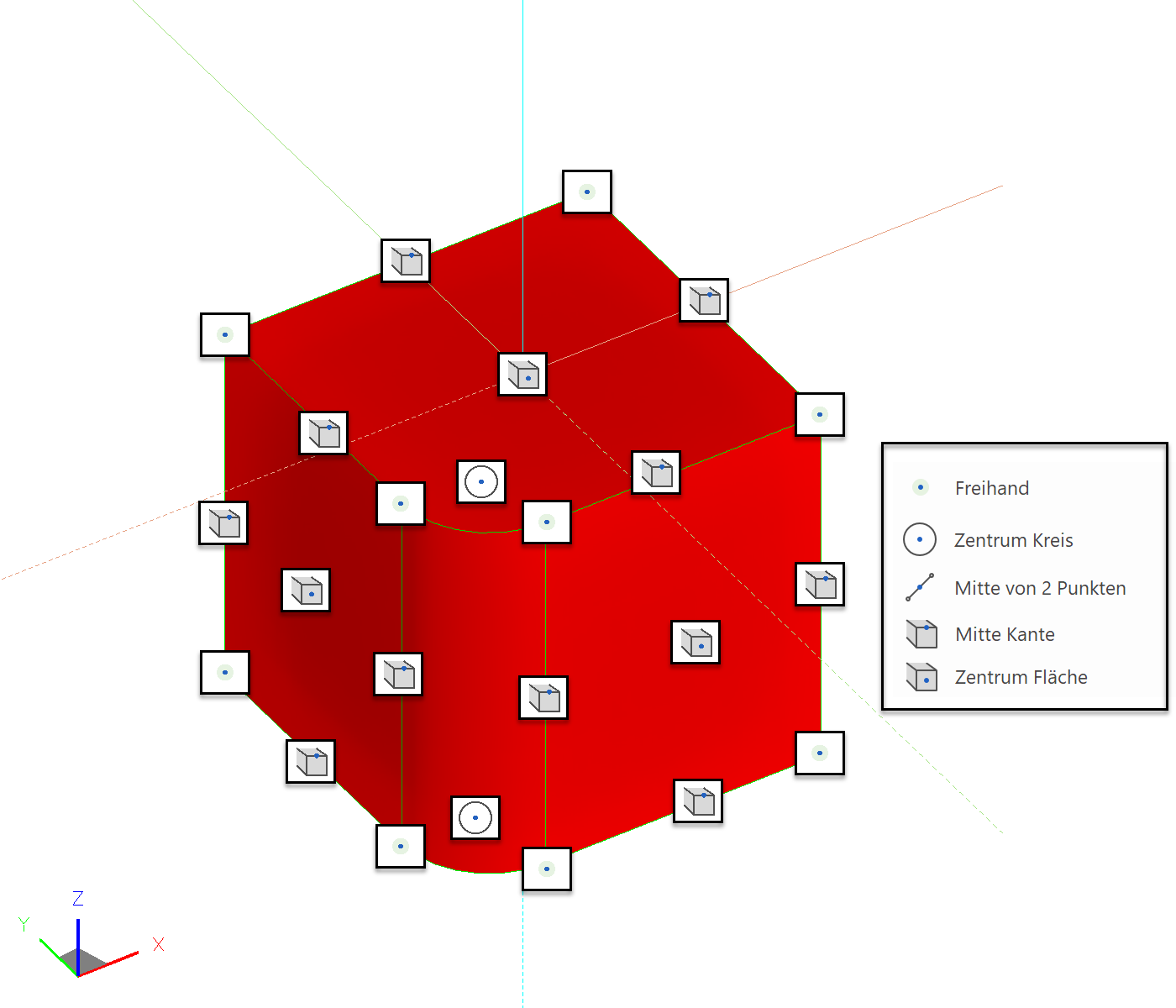
Tip
ATTENTION!!
In 3D, the snap function prioritises the shading first, then the wireframe and finally the 2D lines.
Rotate, Zoom and Move the image
Rotate the image in 3D
If you just keep the middle mouse button pressed and move the mouse, the 3D image will turn.
Zoom on the image
Simultaneously press the Shift key and centre mouse button and move the mouse up to zoom in on the image and down to zoom out.
If the centre mouse button is a scroll wheel, this can also be used to zoom.
The zoom function applies to the current cursor position.
Move the image
Simultaneously hold down Ctrl + middle mouse button and move the mouse or, while holding down the Ctrl key, use the arrow keys on the keyboard ↑ ↓ ← →.
Screen starting position
 oder Ctrl+Space
Select this function (Reset camera) to return to the starting position from a rotated screen. Starting position means "view normal to the work plane" and "sheet format centred on screen".
oder Ctrl+Space
Select this function (Reset camera) to return to the starting position from a rotated screen. Starting position means "view normal to the work plane" and "sheet format centred on screen".
Tip
Should you wish to retain the current work plane and merely zoom onto the format, you can do so using the function ZOOM ON FORMAT. 
Image displays
| Wire model | Pixel hidden line | Solid model | Edges |
|---|---|---|---|
| Ctrl+D | Ctrl+H | Ctrl+D | Ctrl+K |
 |
 |
 |
 |
 |
 |
 |
 |