Manipulate polygon
A created polygon can be modified. The 1st click on the polygon selects it and the corners receive handles.
| Polygon | 1st click | 1st click effect | 2nd click |
|---|---|---|---|
 |
 |
 |
 |
The 2nd click determines which corner or which edge is to be modified. So that you can tell that the cursor is over a changeable element, it changes its appearance to a quadruple arrow.
Other manipulation functions appear depending on whether a line, a curve, a corner or an end point was clicked. The function last selected is immediately active.
The available manipulation options appear in the Input assistant tool bar or on the cursor with the Tab- key.
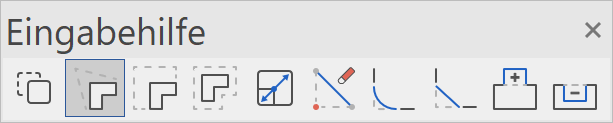
Manipulation options on a corner
| Stretch point | Delete point |
|---|---|
 |
 |
 |
 |
| Chamfer | Fillet |
 |
 |
 |
 |
Manipulation options on an edge
| Insert point | Round edge | Stretch element |
|---|---|---|
 |
 |
 |
 |
 |
 |
Manipulation options for a corner or edge
| Move selection | Scale element |
|---|---|
 |
 |
 |
 |
By pressing the Ctrl key at the same time, the selection can be copied when moved. When scaling, a reference point must be set as the starting point for scaling.
| Move elements parallel | Move all elements parallel |
|---|---|
 |
 |
 |
 |
Change polygon
A distinction is made between whether a closed or an open polygon is to be modified. After you select the change function, the drawing functions with which the change can be drawn appear in the input assistant.
Expand/reduce closed polygon by one circle:
First select the EXPAND or REDUCE POLYGON function followed by the drawing function CIRCLE.
| Drawing function | Extend circle polygon | Reduce polygon |
|---|---|---|
 |
 |
 |
 |
 |
 |
Open polygon:

For the open polygon, the extension polygon must be started on the geometry and ended by double-clicking on the geometry. An exception is when you start on an end point. If the polygon cannot be closed properly, the change is not carried out.


Structure/Selection
Selection of element part
For certain manipulations such as move selection or extend elements/move in parallel, it makes sense to perform the manipulation only on certain elements rather than the entire polygon.
To enable individual elements to be selected, the selection mode must be switched to "Selection element part".
Alternatively, press the Alt key.
Multi-selection is possible with Shift.

Workshop
Edit a rectangle until you receive the following result:
 |
 |
- Begin with entry of the rectangle. Function RECTANGLE.

Set the first point of the rectangle at any point on the screen. For the second point, press the Tab key and enter in the value field the x value 1000 and the y value 1000 and confirm your entry.
End the drawing function by pressing Esc or the CANCEL function.

- The first manipulation function is the extension of a polygon.
Select the rectangle (P1). Move the cursor to an element of the polygon until the quadruple arrow appears. With one click (P2), you activate the current manipulation function in the input assistant. To display the selection of the function, press the Tab key. Select the function REDUCE POLYGON. - Another manipulation option is the filleting or chamfering of a corner. In the example, the lower left corner is to be filleted.
Click in the corner Tab key, FILLET 
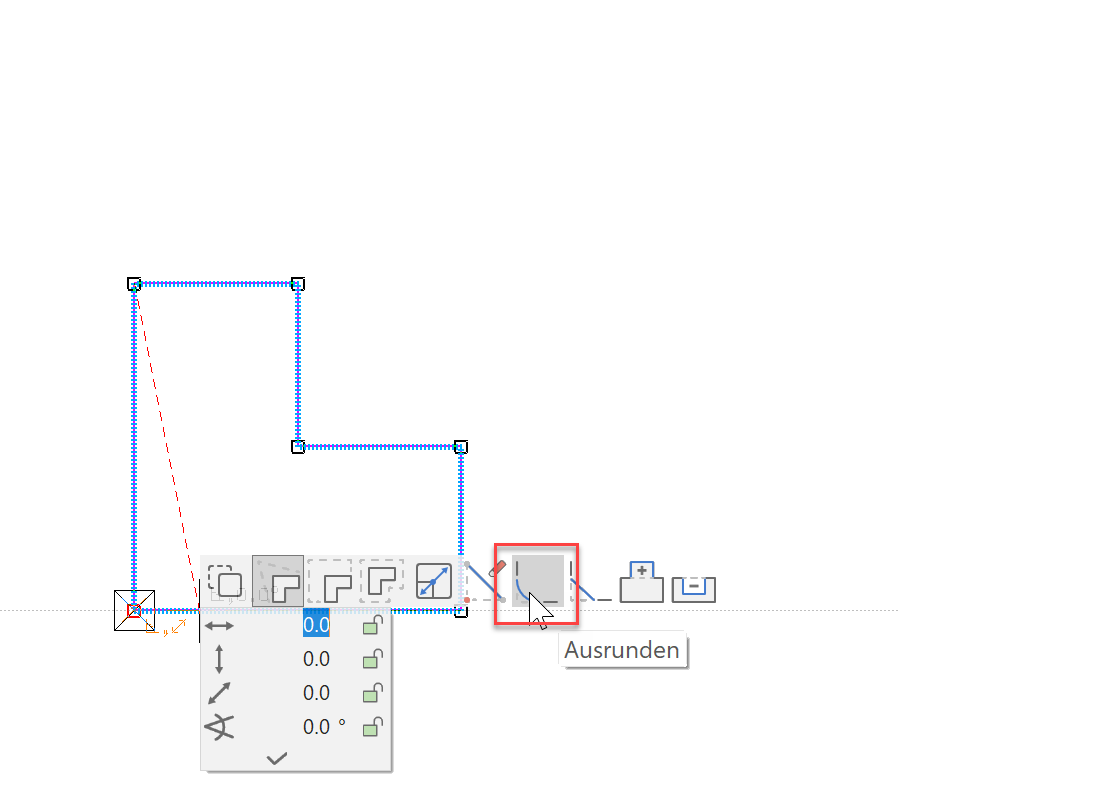
Enter radius 400 Confirm 

- The next manipulation is stretching a point. The right lower point is to be moved 150 cm to the right.
Click in the corner Tab key, STRETCH POINT 
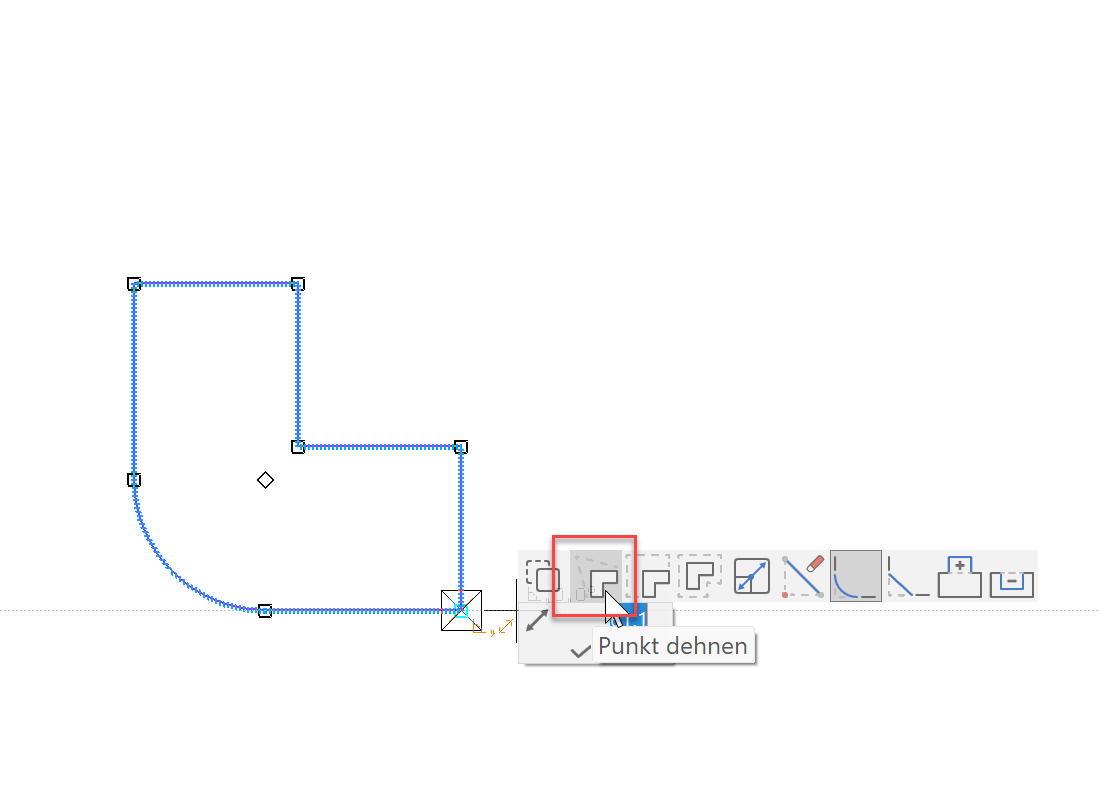
Distance to element, 150 

- The upper edge must be stretched upwards by 500 cm.
Click on the edge Tab key, MOVE ELEMENTS PARALLEL 
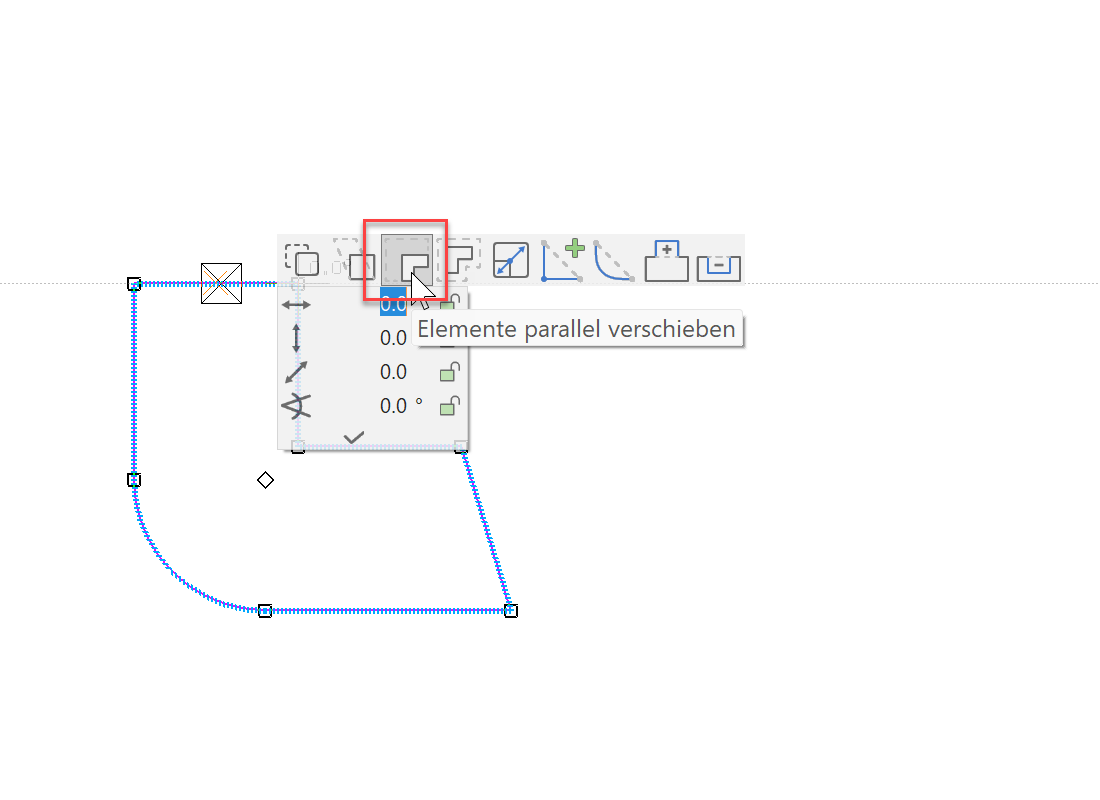
Move cursor to the perpendicular help line and enter the direct value 500 in the value field. 

- The INSERT POINT function splits an element and enters a point that can be set at the desired position straight away.
Click on the element Function INSERT POINT 
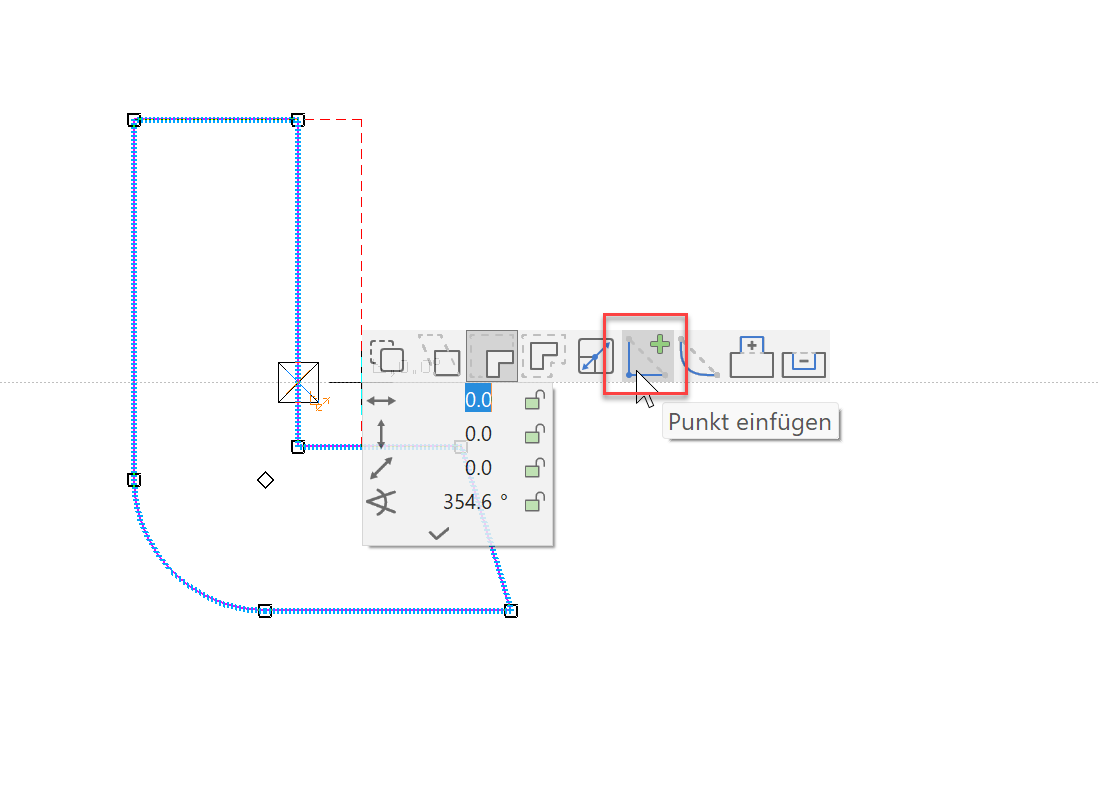
Set point to middle of element New point with handle 

- Until now the manipulations were performed on the entire polygon; now however only one element can be selected. Before the element is selected, you must switch to the selection mode element part.

Remove existing selection with the Esc key or by left-clicking into an empty space.Mark element Click for manipulation mode 

Function MOVE ELEMENTS PARALLEL 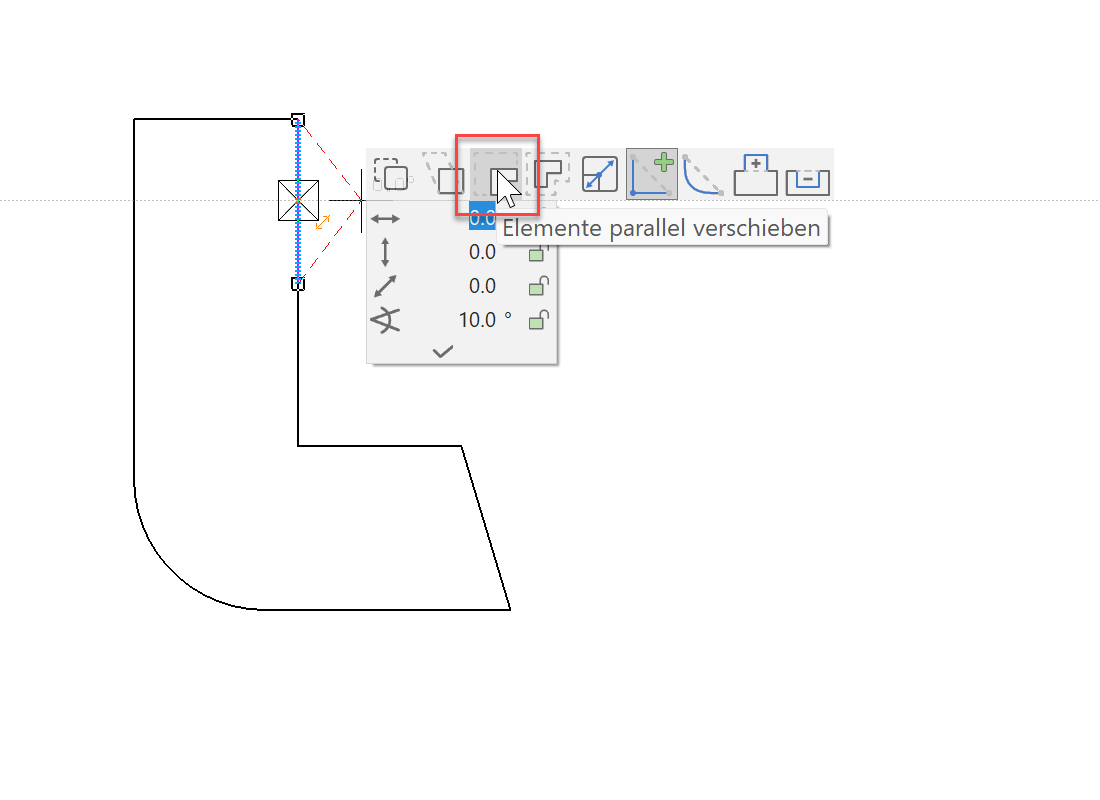
Move the element out and move the cursor to the lower point until the capture point symbol appears on the cursor. You can then be sure that the element is located perpendicular above the point.


This step will look different when the various functions are used. Below are some examples so you can see how these functions affect an existing polygon.
Can you recreate these different shapes? Use the UNDO function to try each combination.Manipulation Icon Part selection activated Part selection deactivated Move elements parallel 

Stretch elements 

Move all elements parallel 

- Open a new file and deactivate the selection element part mode.

 |
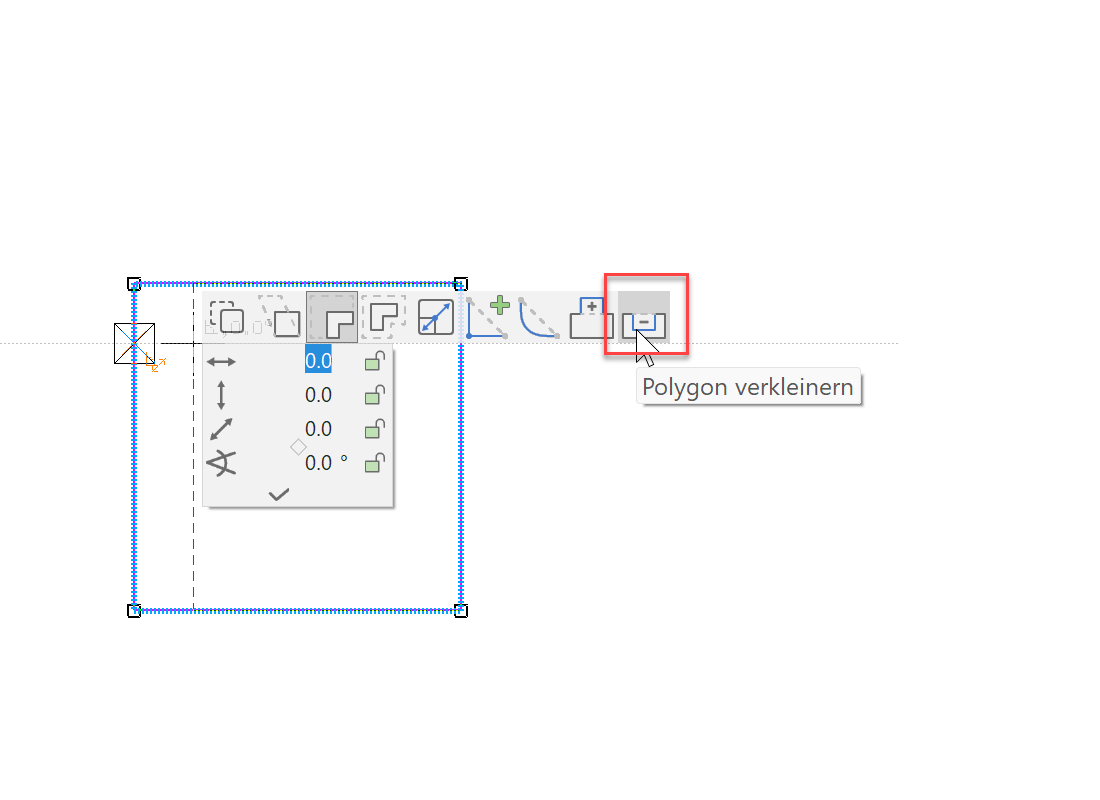 |
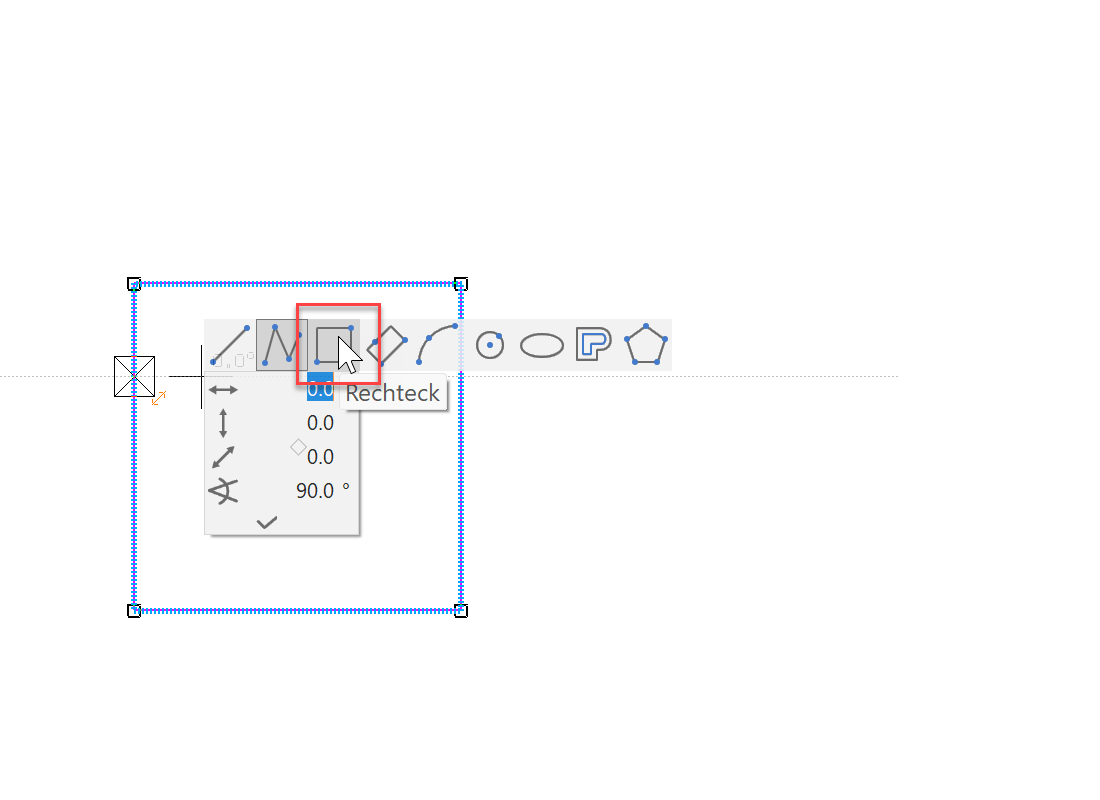
| RECTANGLE drawing function | |
|---|---|
 |
|
| Start point lies on the middle of the element | End point lies on the middle of the element |
 |
 |
 |