Virtual Reality
ELITECAD contains the integration of OPENVR, STEAMVR and Meta (form. Oculus). These are runtime libraries, which are used to control VR devices like the Meta, HTC and many others manufacturers. In order to be able to use STEAMVR or Meta, it is necessary to register an account. Furthermore, the runtime libraries have to be installed and activated in the input device settings. For help in setting up you VR equipment with ELITECAD, see our „VR-Installation guide“ which describes the installation procedure for VR devices step by step.
We highly recommend using OpenXR as this opens the possible combinations of equipment almost endlessly and at the same time ensures that the latest technology will also be supported without any further action.
Note
If the runtime libraries are not yet installed on your system, please contact your IT support. There is an installation guide, but the setup requires IT knowledge and unrestricted access to the system. Once a runtime is installed, you can use any VR devices.
Preparing the VR device
Now Let's use VR glasses to freely move around in the building using everything we have learned in this course unit. For this purpose, we connect our VR device of choice to our PC (follow device specific instructions of the manufacturer). This allows us to have a 360-degree view in combination with the detailed real time visualisation, which provides a realistic feeling of being inside a building model. Using the WALKING MODE, we can gauge the proportions of the rooms just like in reality, which allows us to spot errors in an early planning stage. The following settings should be set on your system.
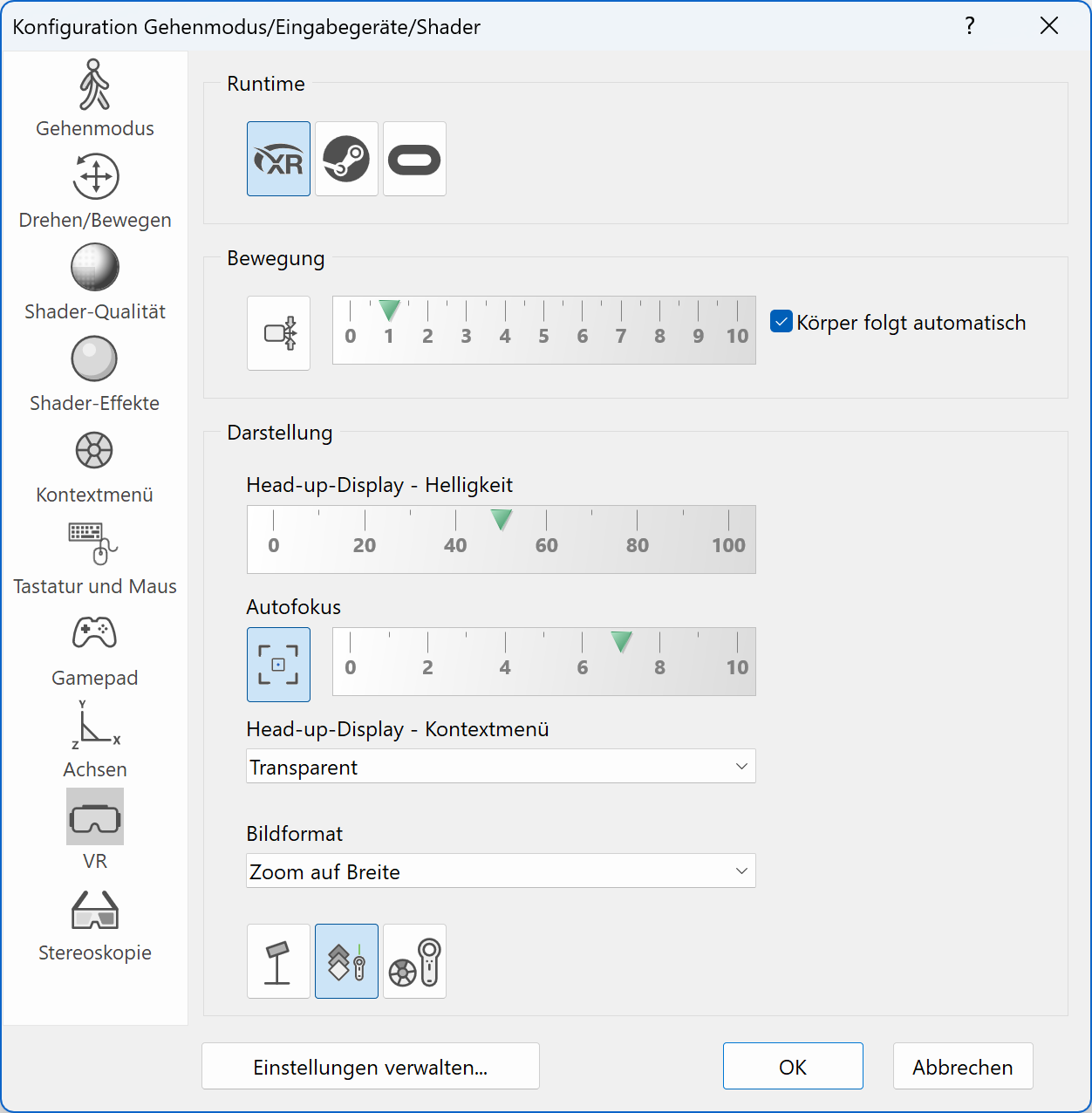
The following functions should be added to the context menu.
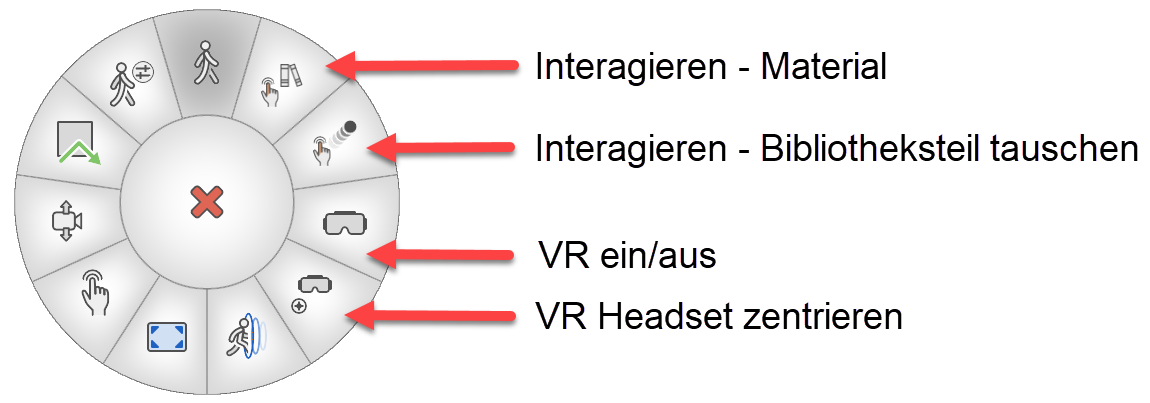
 The preparations for the use of VR are now completed and we can start experiencing VR by using the VR on/off button and putting on the glasses.
 If we want to stop the virtual walkthrough and afterwards continue again, we can also use the VR quick start button from the toolbar.
Navigation with the controller


Turning the head in VR also changes the viewing angle, which corresponds to the behaviour in the real world. Turning the body can be done by using the controllers. The left joystick controls the direction of movement and the right joystick controls the rotation of the body. All functions, which can be used in the WALKING MODE, can also be used in virtual reality mode.
If we lose the orientation we can use the function RE-CENTER VR HEADSET to restore a defined state.
Direction interaction in viewing direction
Interactions in VR are especially impressive, because they can be by the users inside the VR mode without switching to the CAD user interface. Changing materials or library parts can be done directly in VR, by looking at the object to change (depending on the settings and VR-device). We can use functions like INTERACT – MATERIAL or INTERACT – CHANGE LIBRARY PART from the context menu. You can also use the functions INTERACT or QUICK INTERACT directly with the controller.
Now use the controller to walk through the building in VR and apply everything you have learned in this course unit.
Tip
Sometimes we tend to lose the reference to the real world, so it is recommended to be in a safe position when you enter the virtual reality mode. We recommend using VR while sitting to avoid any injuries. When standing, be sure there is enough room for free movement.
If you feel dizzy, please stop using the VR for a while.